PDF Templates
PDF Templates are a type of fragment where a user defines which fields in a PDF are needed for data extraction. This is helpful if a business process requires information from recurring PDFs, such as an invoice or a report.
An example workflow using a template would be when a business needs to extract the name, date, and invoice number from an invoice. This data can be extracted and sent to the appropriate destination.
Configuring a PDF Template
Create a PDF Template
To create a PDF template, enter the ‘PDF Templates’ page by clicking on the option in the menu screen.
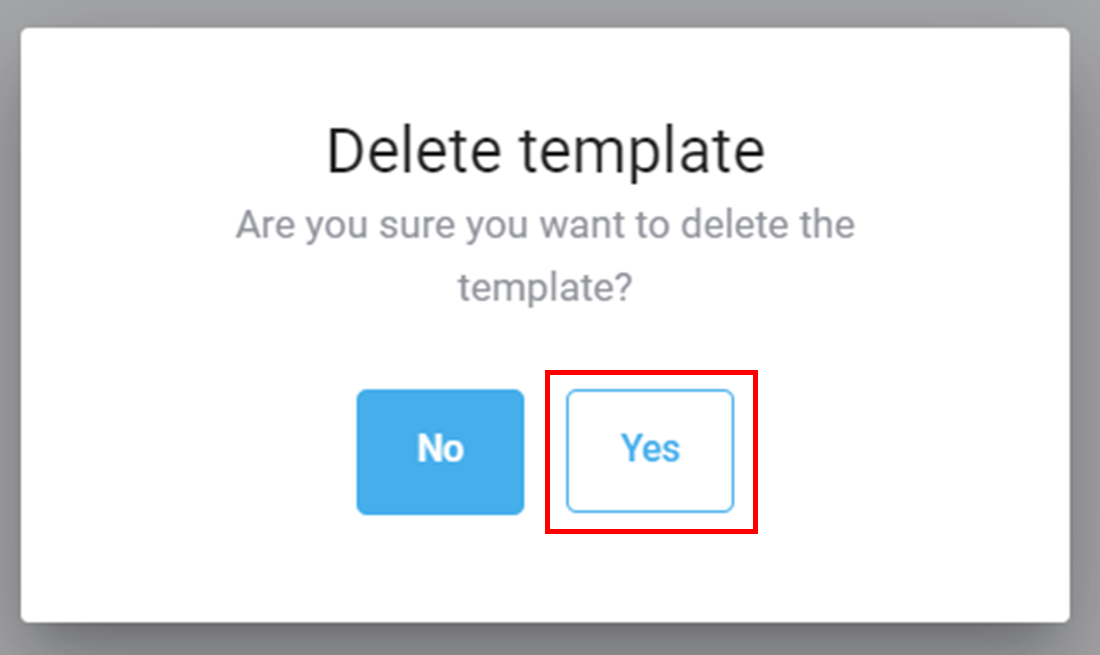
- Click on Create pdf template +
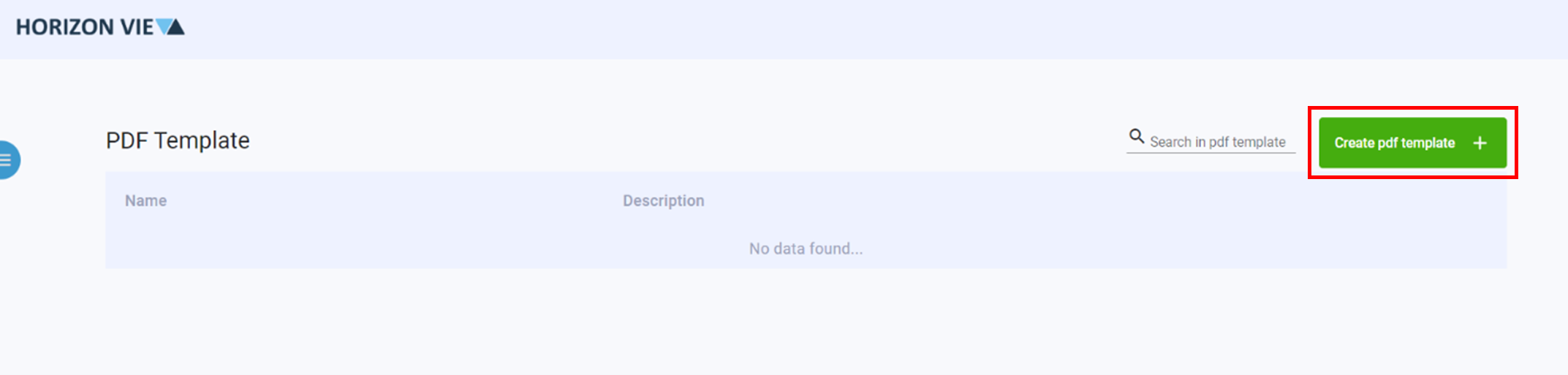
- Enter a name and description for your template
- Click Create
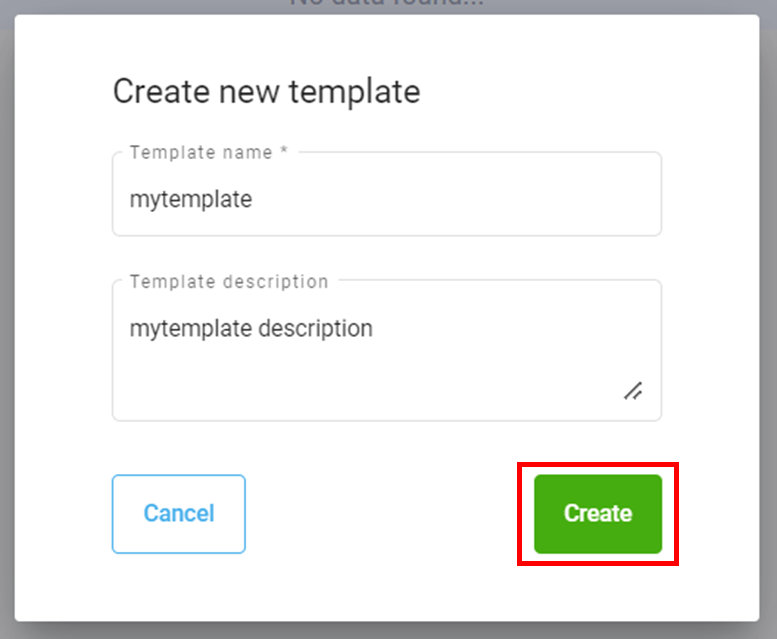
- Click on the arrow to enter the template design space
- Drop a sample PDF in the box or click the button to upload a sample PDF
- For non-table related data, click Draw marker
- Highlight the data to be included
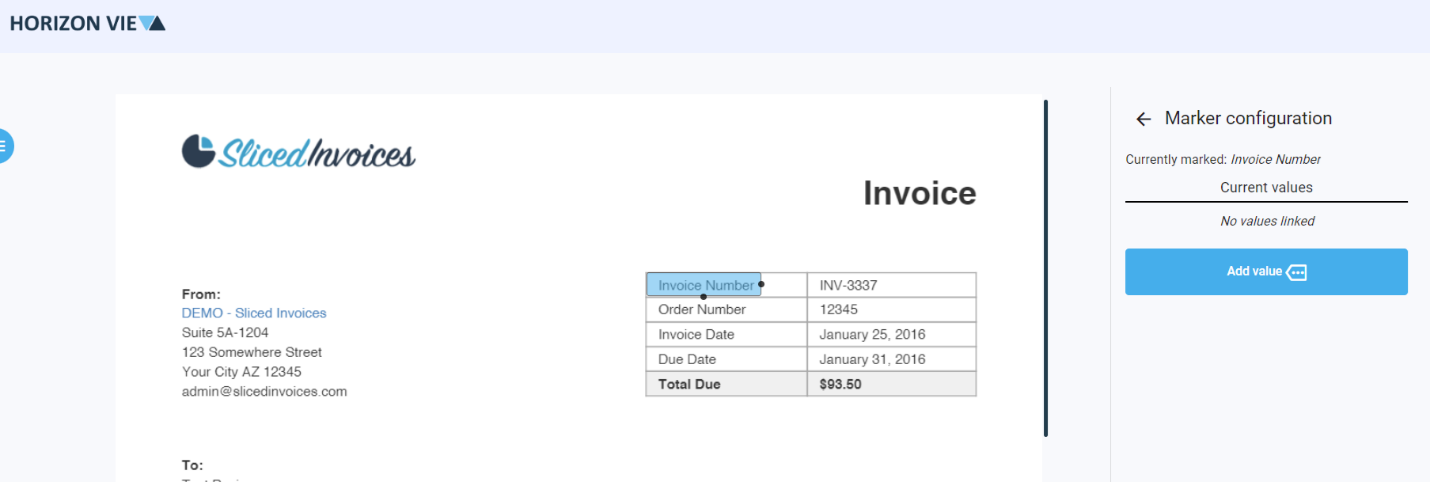
- Click Add value if there is an additional value from the previous step
- Enter an Output label if required
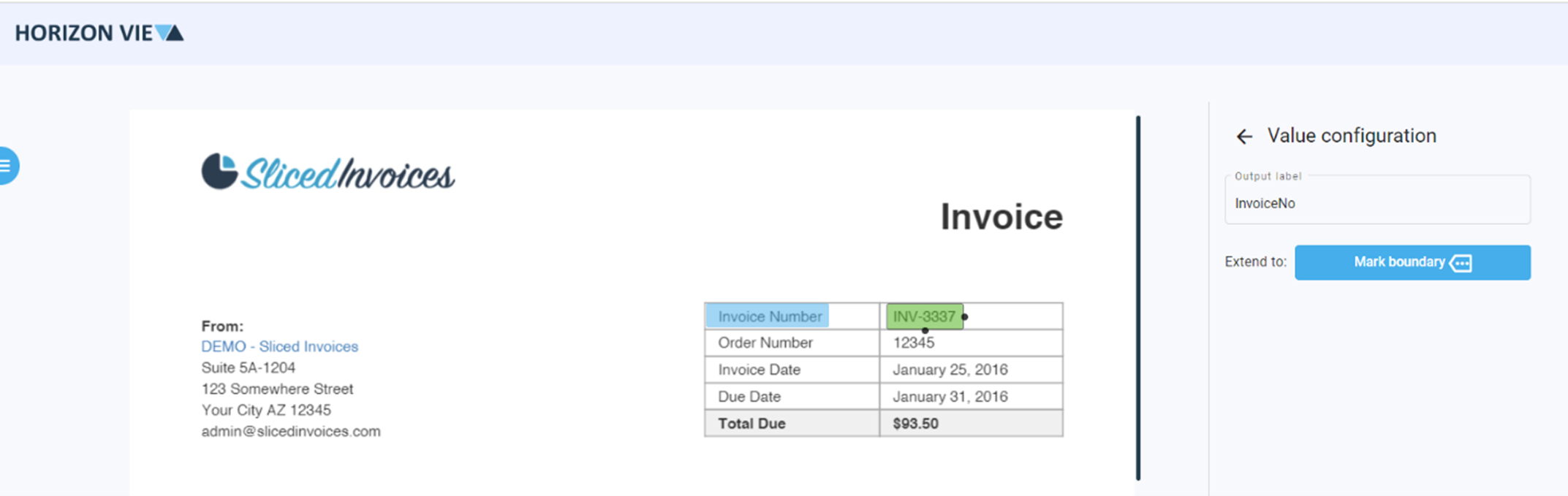
- Repeat steps 5-8 for additional non-table related data
- For table related data, click Draw table
- Highlight the table
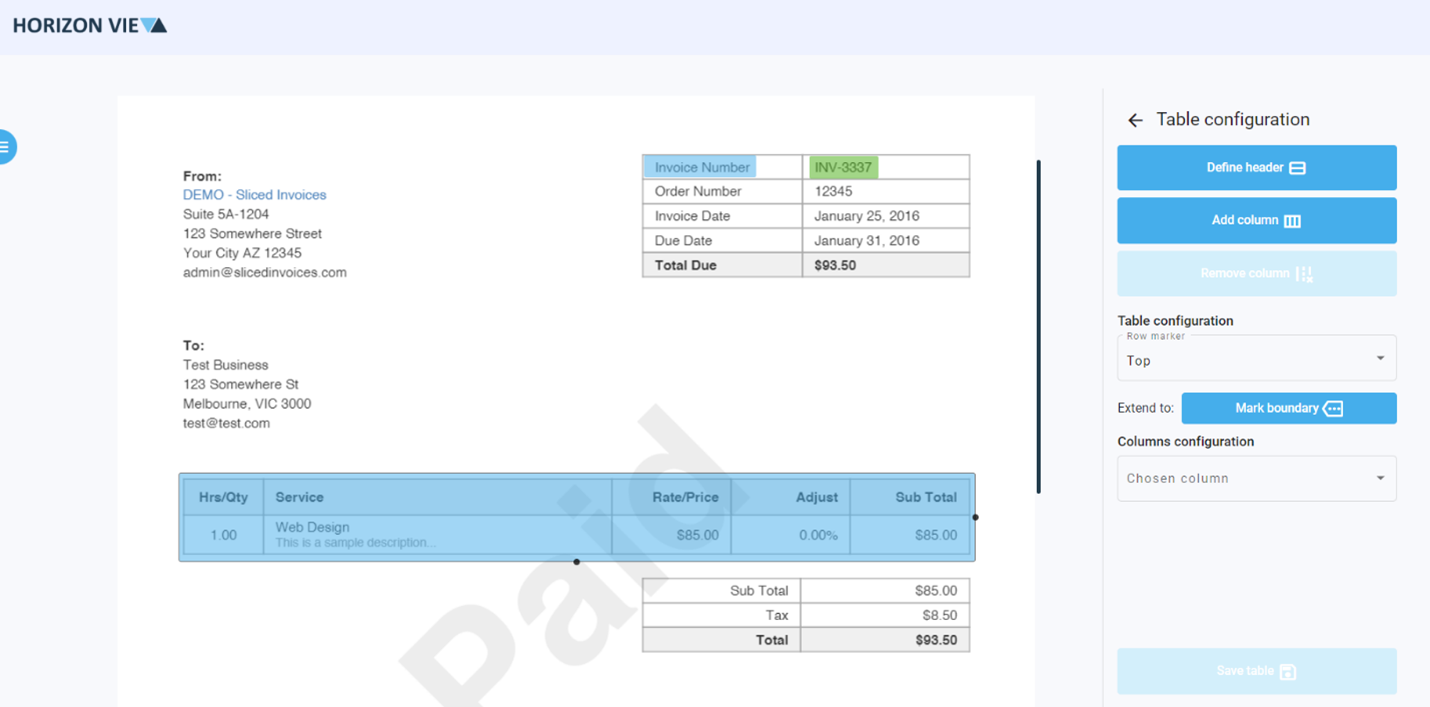
- Click Define header
- Slide the bar right below the table header and before the first row
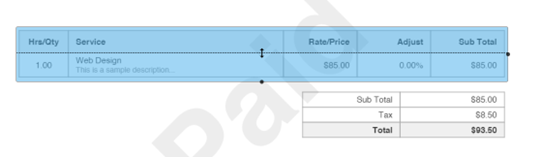
- Click Add column
- Slide the bar right between the columns
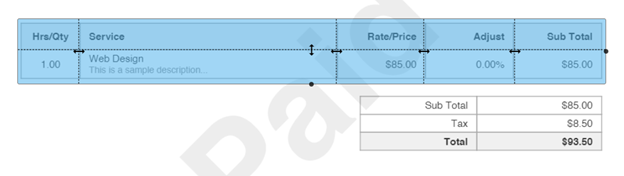
- Repeat steps 14-15 for all columns required
- Click Save table
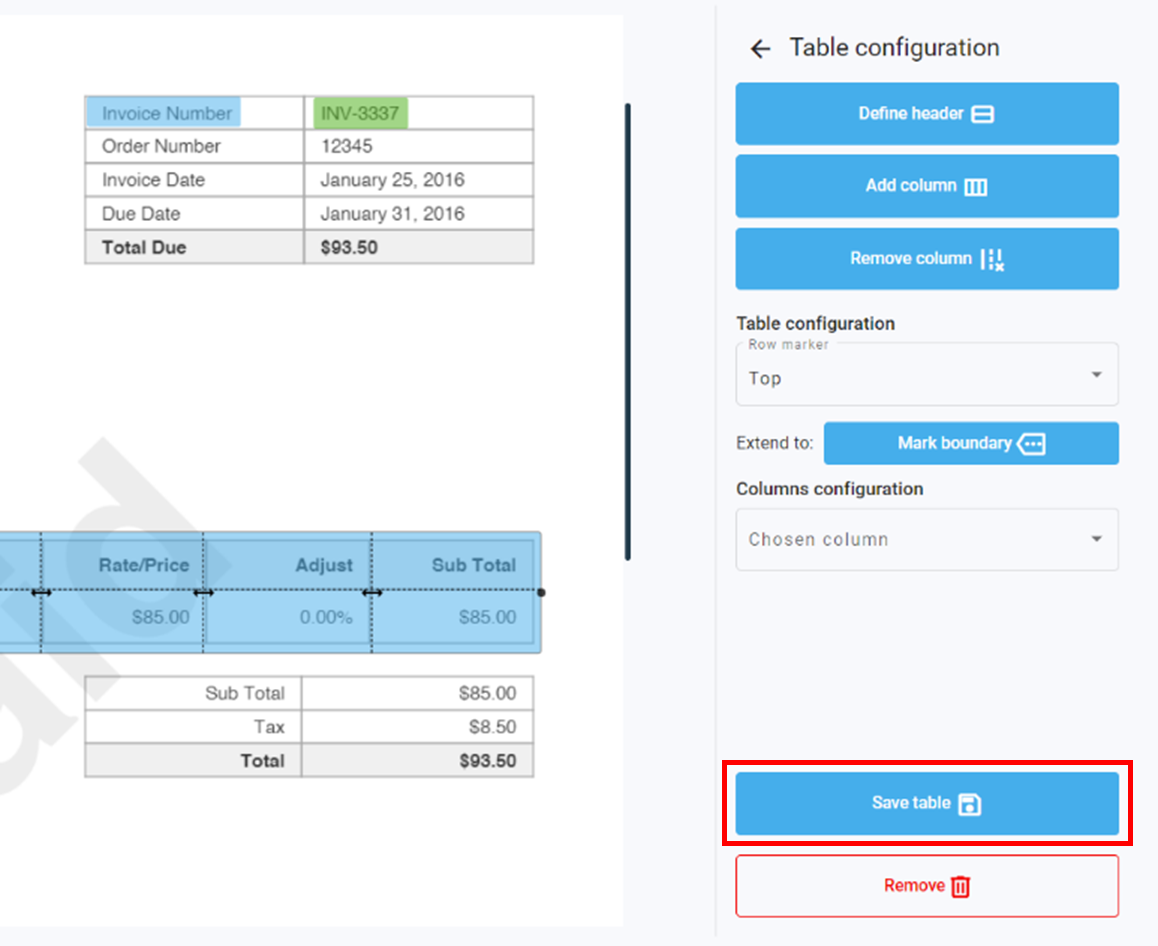
- Repeat steps 10-17 for additional table related data
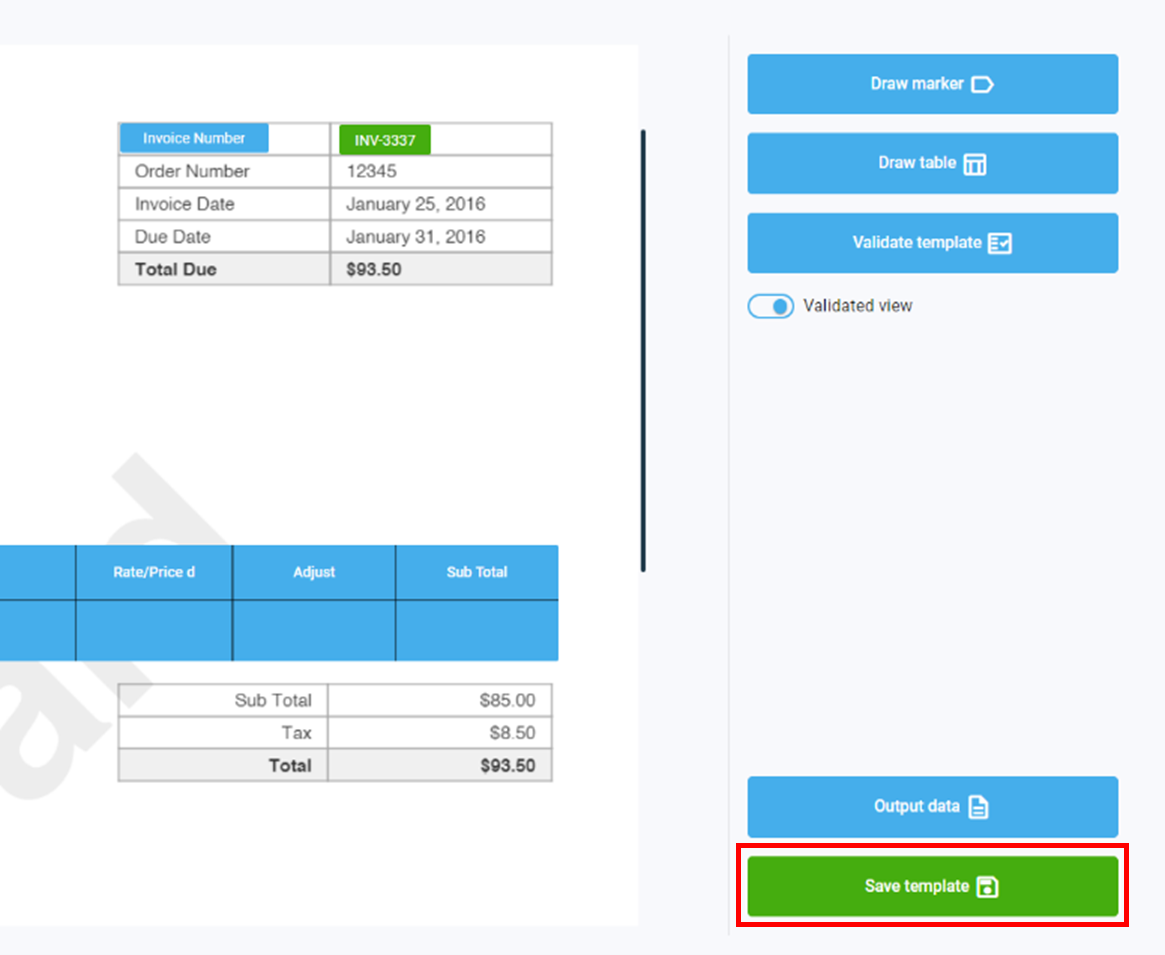
- Click Validate template
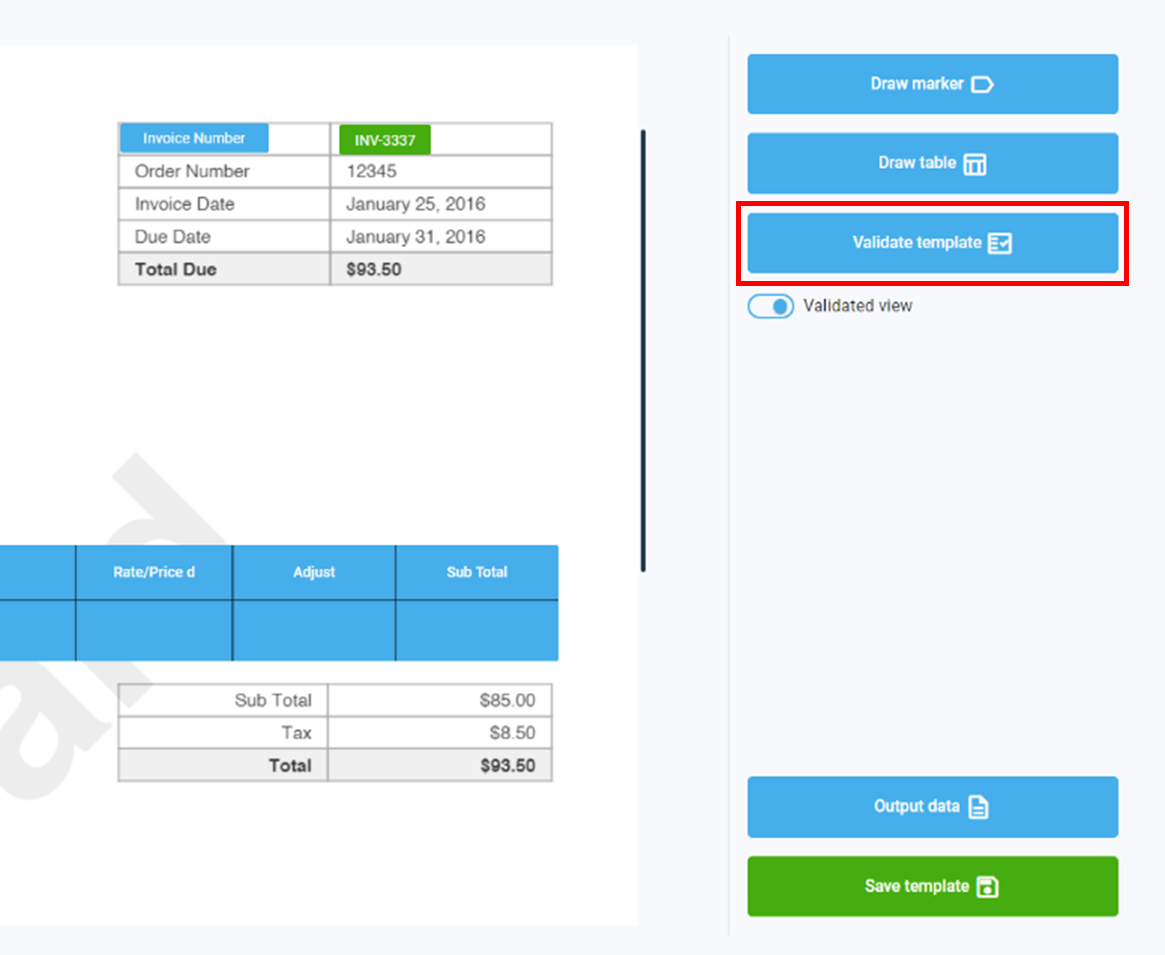
Click Output data to see the data in JSON format
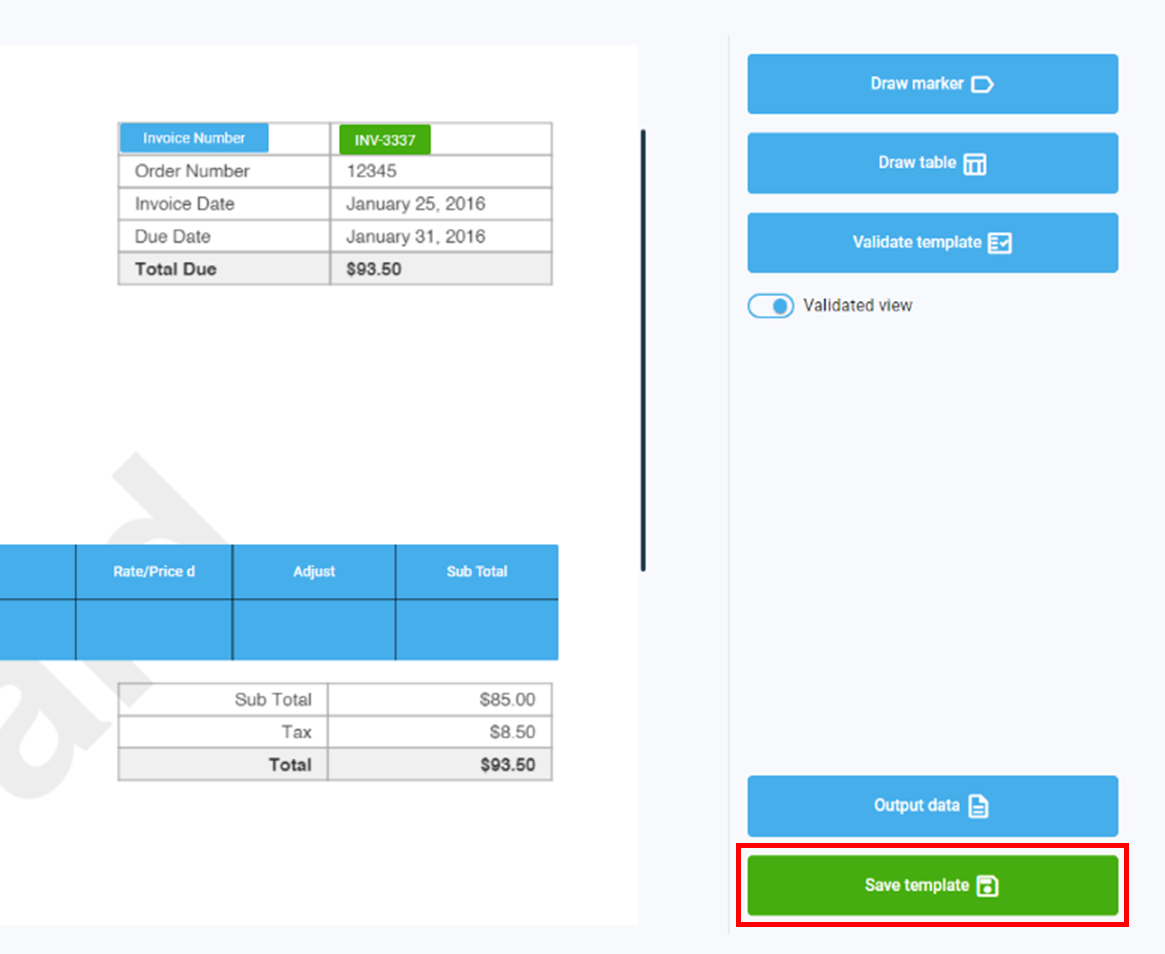
Click Save template when finished
Modify a PDF Template
To modify a PDF template, enter the ‘PDF Templates’ page by clicking on the option in the menu screen.
- Click on the arrow of the template to enter the template design space
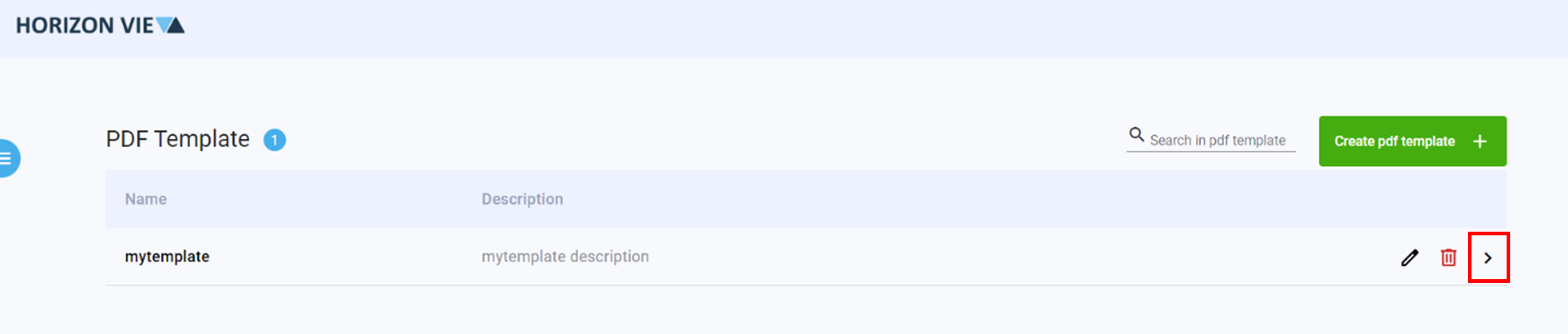
Upload the sample PDF used when creating the template. This can be done by dropping the template in the box or clicking on the button to upload
Modify the template as necessary
Click Save template when finished
Remove a PDF Template
To remove a PDF template, enter the ‘PDF Templates’ page by clicking on the option in the menu screen.
- Click on the trash icon of the template to be deleted
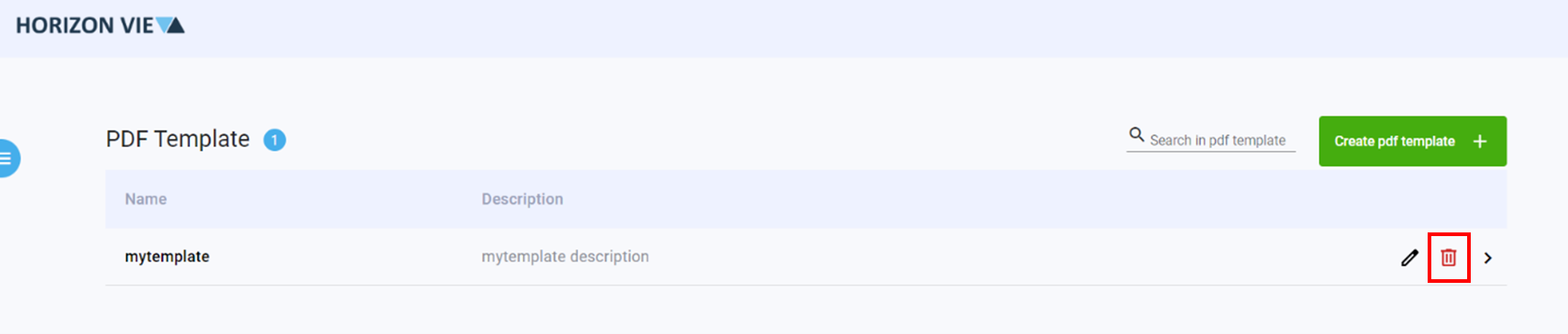
- Click Yes