List of Entities
Below is a list of offered entities, accompanied by detailed descriptions of the required fields for configuration.
Triggers
- HTTP
- Scheduled Time
- Polling Time
- Inbound Email
- MQTT
HTTP Trigger
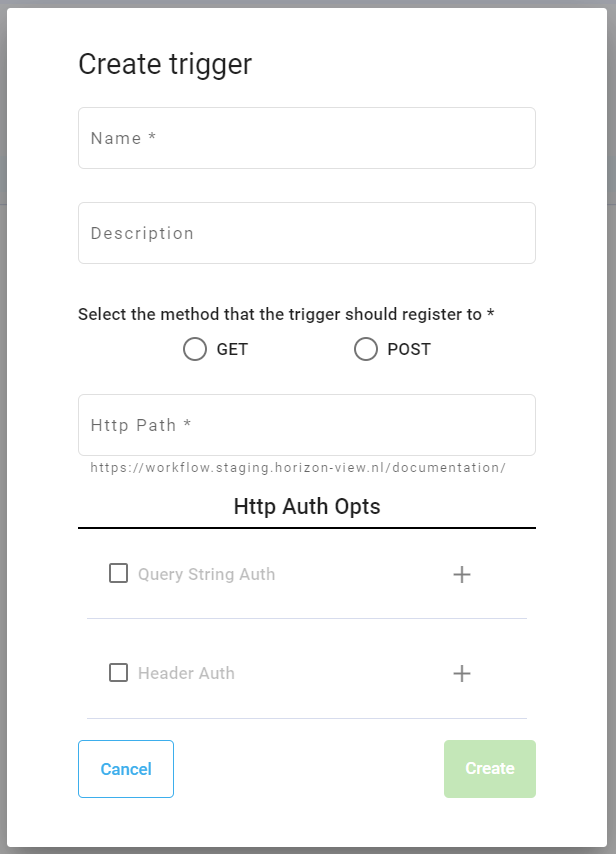
The HTTP trigger is used to start your workflow by sending an HTTP POST request.
Properties
To configure the HTTP trigger, there are four main properties to consider.
Name and Description: These properties are to define the name of your trigger and a short description about it.
Method: This property defines the action of the request. (i.e. POST, GET)
HTTP Path: This property is a customizable unique path to define the URL of the HTTP request.
HTTP Auth opts-
- Query String Auth: This property can be used to provide required credentials in the request URI.
- Header Auth: This property can be used to provide required credentials in the request header.
Scheduled Time
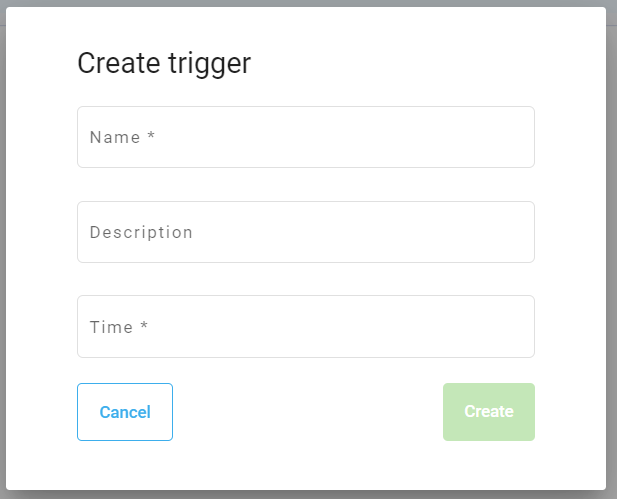
Scheduled Time trigger is used to start a workflow at a set time in the day.
Properties
To configure the Scheduled Time trigger, there are two main properties to consider.
Name and Description: These properties are to define the name of your trigger and a short description about it.
Time: This property defines the set time of when the trigger should be executed (i.e. 12:30, 14:30, etc.).
Polling Time
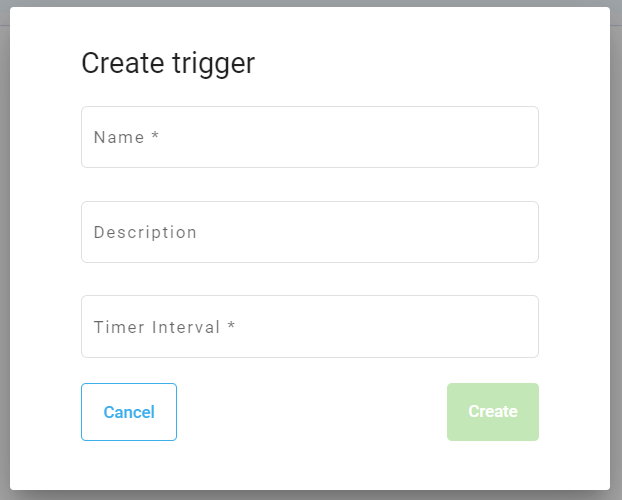
The Polling Time trigger is used to start a workflow by a user-defined timer.
Properties
To configure the Polling Timer trigger, there are two main properties to consider.
Name and Description: These properties are to define the name of your trigger and a short description about it.
Timer Interval: This property defines the period of when the trigger should be executed (i.e. 5 seconds, 5 minutes, 5 hours).
Inbound Email
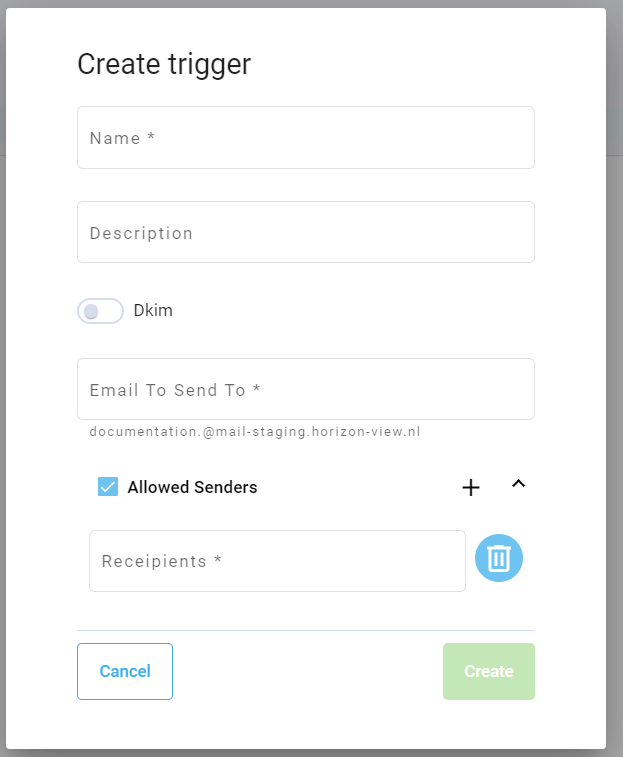
The Inbound Email trigger is used to start a workflow by sending an email to your workflow.
Properties
To configure the Inbound Email trigger, there are four main properties to consider.
Name and Description: These properties are to define the name of your trigger and a short description about it.
DKIM: This property can be checked if DKIM checking is a requirement for your use-case.
Email to send to: This is a user-defined property that allows you to offer a unique email address when sending an email to your workflow. The email address has the following structure:
application_name.userDefined_name@mail-staging.horizon-view.nl
- Allowed Senders: This optional property is available for only accepting incoming emails to your workflow from specified users.
MQTT
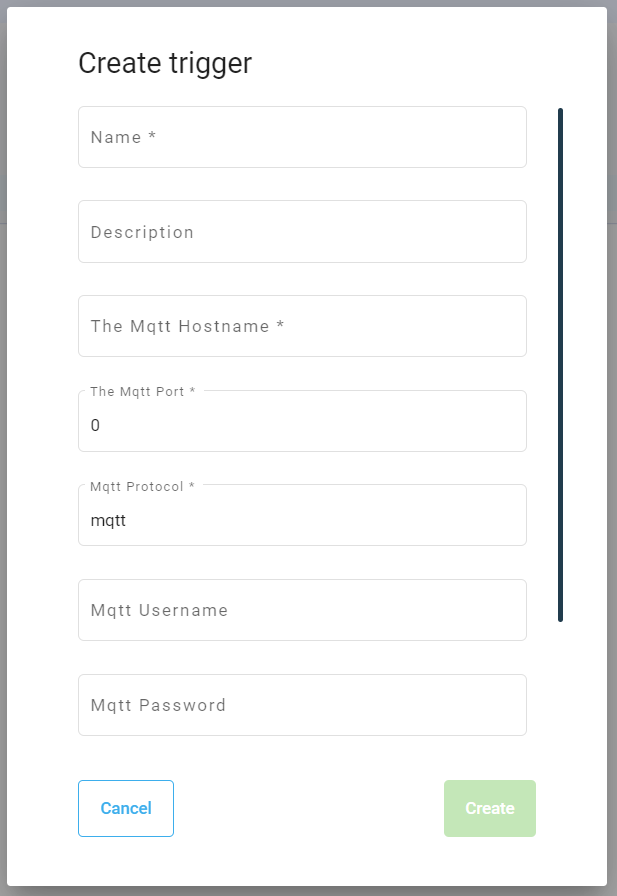
The MQTT trigger is used to start your workflow by receving data from a source.
Properties
To configure the MQTT trigger, there are five main properties to consider.
Name and Description: These properties are to define the name of your trigger and a short description about it.
MQTT Hostname: The MQTT identifier to where the connection needs to be made.
MQTT Port: The port MQTT is hosted on.
MQTT Protocol: The protocol to use when interacting with the MQTT broker.
MQTT Username and Password: The user credentials required for authenticating against the MQTT broker.
Actions
- HTTP
- Outbound Email
- Conversion
- PDF Extract
- File Copy
- File Read
- File Write
HTTP Action
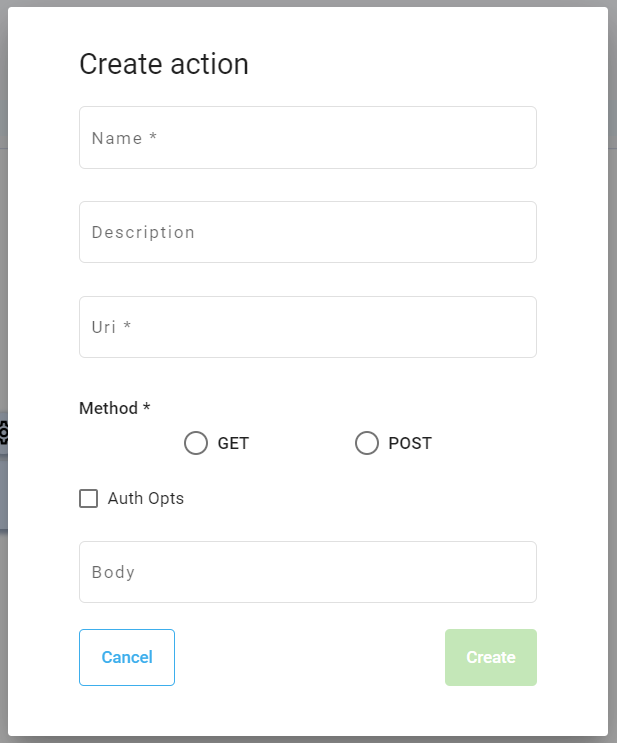
The HTTP action is used to send an HTTP request within a workflow.
Properties
To configure the HTTP action, there are five main properties to consider.
Name and Description: These properties are to define the name of your action and a short description about it.
URI: The request target to send the data to.
Method: This property defines the action of the request. (i.e. POST, GET)
HTTP Auth opts-
- Query String Auth: This property can be used to provide required credentials in the request URI.
- Header Auth: This property can be used to provide required credentials in the request header.
Body: This property allows additional data required for sending the request.
Outbound Email
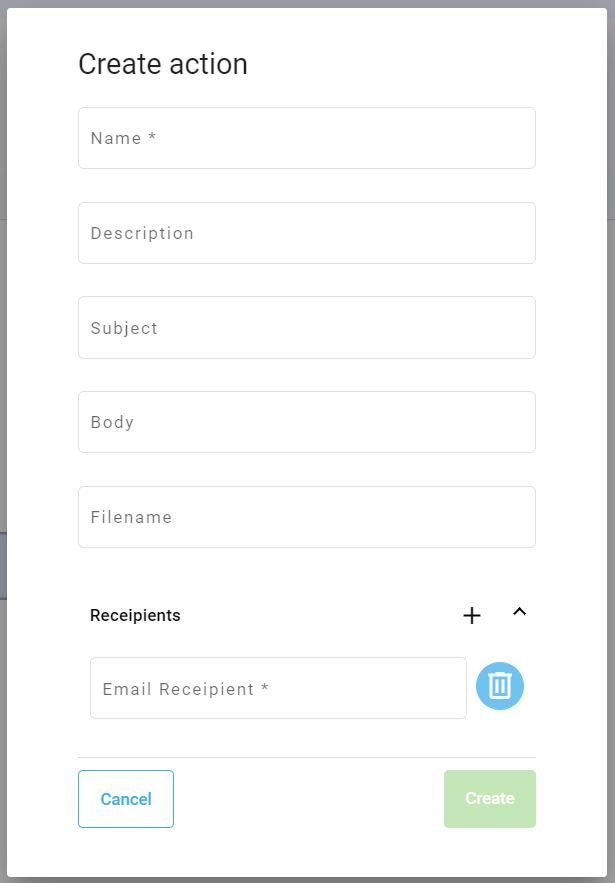
The Outbound Email action is used to send an email to any receipient during the workflow. It can be used as a notification or as a transfer of processed files.
Properties
To configure the Outbound Email action, there are five main properties to consider.
Name and Description: These properties are to define the name of your action and a short description about it.
Subject: This property defines the email subject.
Body: This property allows additional text to be added to the email body.
Filename: This property defines the filename being sent.
Receipient: This property is a list of email receipients to send the email to.
Conversion
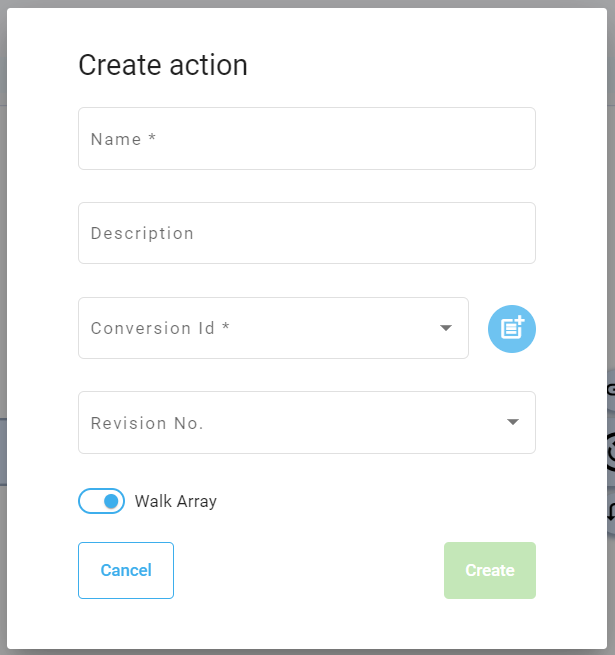
The Conversion action is used to transform data in a workflow to match the data destination's requirements.
Properties
To create a Conversion action, a Conversion must be defined first.
To configure the Conversion action, there are three main properties to consider.
Name and Description: These properties are to define the name of your action and a short description about it.
Conversion Id and Revision No.: These properties define the conversion being used and it's required revision.
Walk Array (Array data only): This property defines if the array data coming through needs the conversion to be applied to each element.
PDF Extract
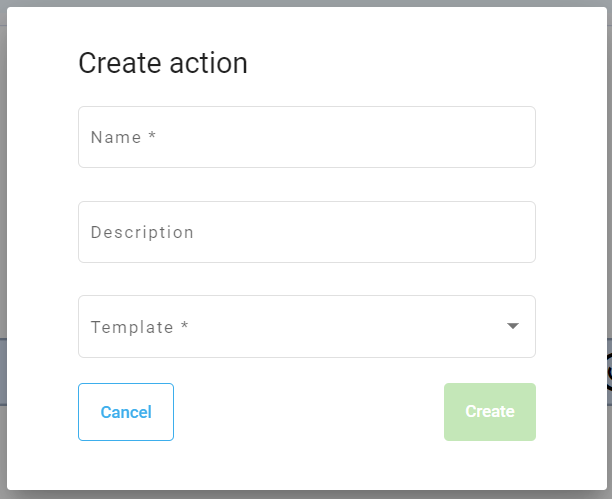
The PDF Extract action is used to extract incoming PDF data within a workflow.
Properties
To create a PDF Extract action, a PDF Template must be created first.
To configure the PDF Extract action, there are two main properties to consider.
Name and Description: These properties are to define the name of your action and a short description about it.
Template: This property defines the PDF template being used.
File Copy
The File Copy action is used to copy files over from one data source to another data source (i.e. FTP, Cloud storages, etc.)
Properties
To create a File Copy action, a file storage fragment must first be defined. See fragment section below.
To configure the File Copy action, there are three main properties to consider.
Name and Description: These properties are to define the name of your action and a short description about it.
Source - Select the file storage fragment to retrieve the files from.
- Filename: Define the file name that needs to be copied over.
- Source Path: Define the path of where the file is located.
Destination - Select the file storage fragment to copy the files to.
- Destination Path: Define the path of where the file will be copied to.
File Read
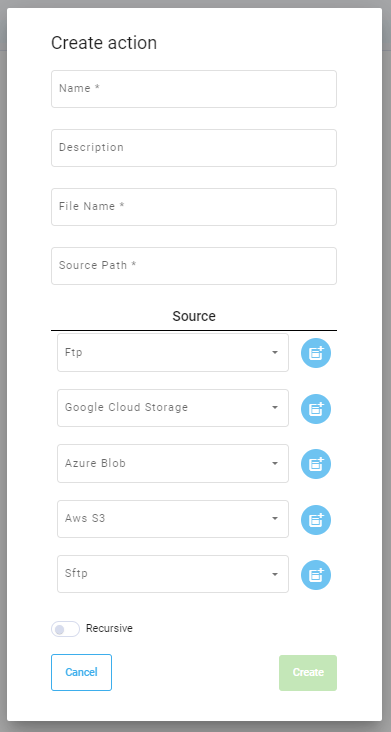
The File Read action is used to read files from a data source (i.e. FTP, Cloud storages, etc.)
Properties
To create a File Read action, a file storage fragment must first be defined. See fragment section below.
To configure the File Read action, there are five main properties to consider.
Name and Description: These properties are to define the name of your action and a short description about it.
Filename: Define the file name that needs to be retrieved.
Source Path: Define the path of where the file is located.
Source: Select the file storage fragment to retrieve the files from.
Recursive: Check if the file needs to be found within sub-folders.
File Write
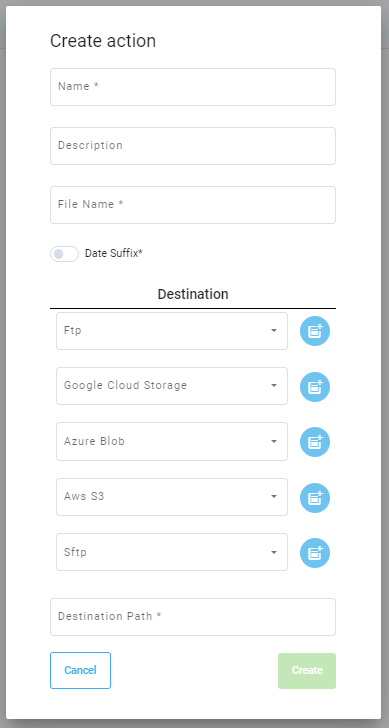
The File Write action is used to write files to a data source (i.e. FTP, Cloud storages, etc.)
Properties
To create a File Write action, a file storage fragment must first be defined. See fragment section below.
To configure the File Write action, there are five main properties to consider.
Name and Description: These properties are to define the name of your action and a short description about it.
Filename: Define the file name that needs to be copied over.
Data Suffix: Check if the file needs a timestamp to be added to the filename.
Destination: Select the file storage fragment to copy the files to.
Destination Path: Define the path of where the file will be copied to.
Fragments
Below are the descriptions for commonly used fields to configure the file storages. All the other fields are recognized as 'Advanced Fields' and should be referenced using the file storage documentation.
- AWS S3 Bucket
- Azure Blob
- Google Cloud Storage
- FTP
- SFTP
AWS S3 Bucket
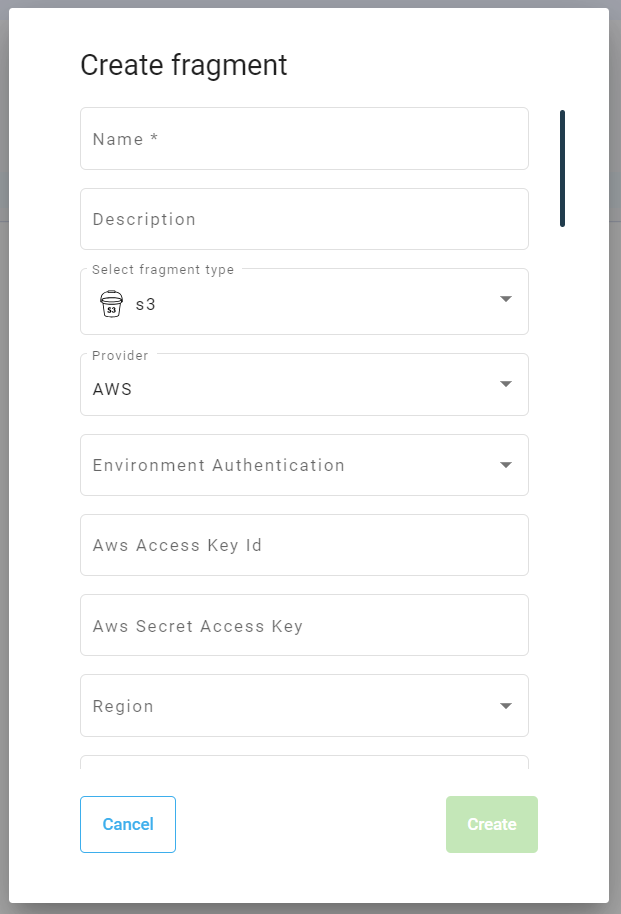
The AWS S3 Bucket fragment is a defined configuration a workflow can access.
Properties
To configure the AWS S3 Bucket fragment, there are four commonly used fields.
Name and Description: These properties are to define the name of your fragment and a short description about it.
AWS Access Key ID: The access key for an IAM user or the AWS account root user. (i.e.
AKIAIOSFODNN7EXAMPLE)AWS Secret Access key: The secret access key for an IAM user or the AWS account root user. (i.e.
wJalrXUtnFEMI/K7MDENG/bPxRfiCYEXAMPLEKEY)Region to connect to: The region the S3 bucket is hosted in. (i.e. eu-west-1, eu-central-1)
For additional information over access keys for AWS S3 buckets, reference the AWS documentation: https://docs.aws.amazon.com/IAM/latest/UserGuide/id_credentials_access-keys.html
Azure Blob
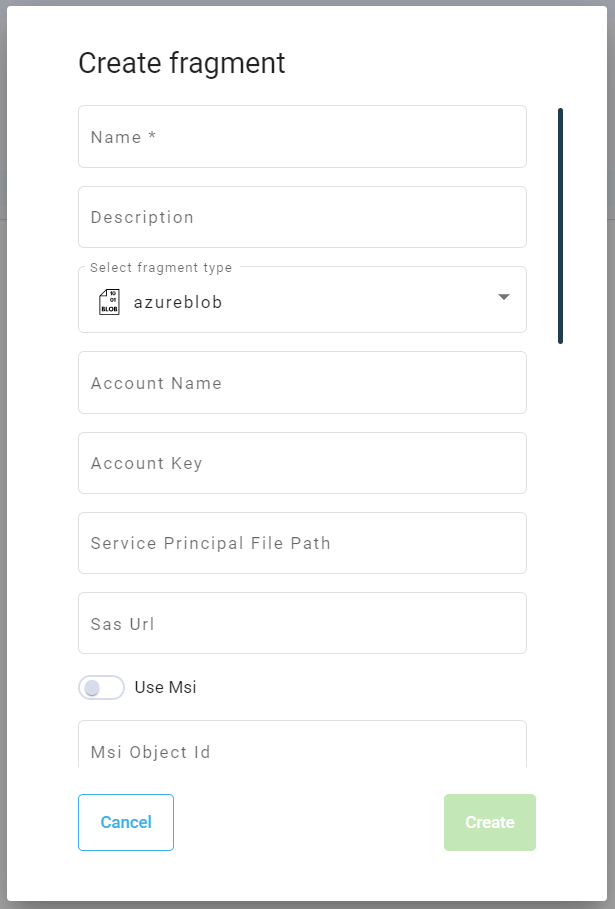
The Azure Blob fragment is a defined configuration a workflow can access.
Properties
To configure the Azure Blob fragment, there are three commonly used fields.
Name and Description: These properties are to define the name of your fragment and a short description about it.
Storage account name: The Blob container name of the storage to be accessed.
Account key: The account access key generated for the storage. (i.e.
MIIKcQIBAzCCCi0GCSqGSIb3DQEHAaCCCh4EggoaMIIKFjCCBg8GCSqGSIb3DQEHAaCCBgAEggX8MIIF+DCCBfQGCyqGSIb3DQEM)
For additional information over account keys and other access methods for Azure Blob, reference the Azure documentation: https://learn.microsoft.com/en-us/azure/storage/blobs/authorize-data-operations-portal
Google Cloud Storage
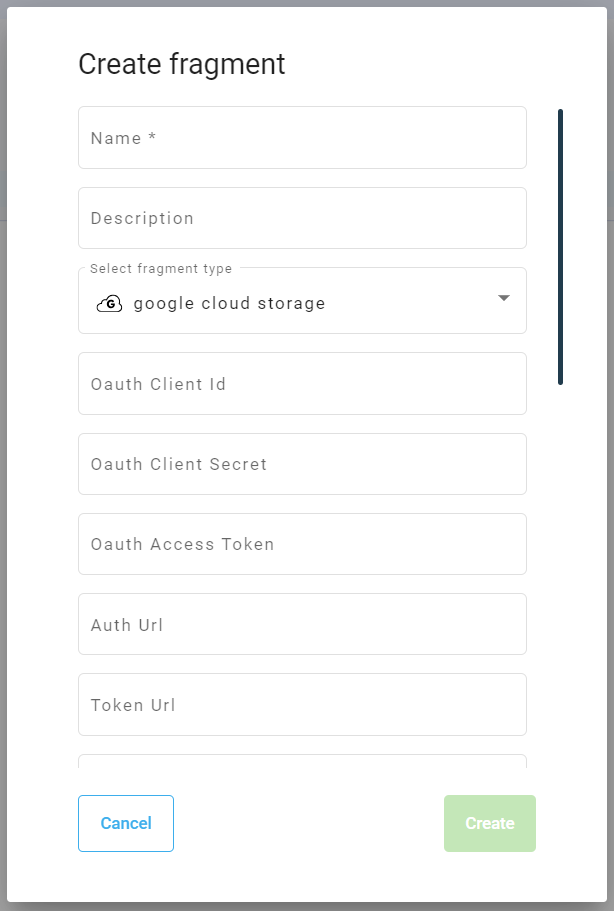
The Google Cloud Storage fragment is a defined configuration a workflow can access.
Properties
To configure the Google Cloud Storage fragment, there are three commonly used fields.
Name and Description: These properties are to define the name of your fragment and a short description about it.
Service account file path: The file path for where the file storage and file are stored.
Service account credentals: The service account key for an IAM user to access the file storage.
For additional information over account credentials and other access methods for Google Cloud Storage, reference the Google Cloud documentation: https://cloud.google.com/iam/docs/service-account-creds
FTP
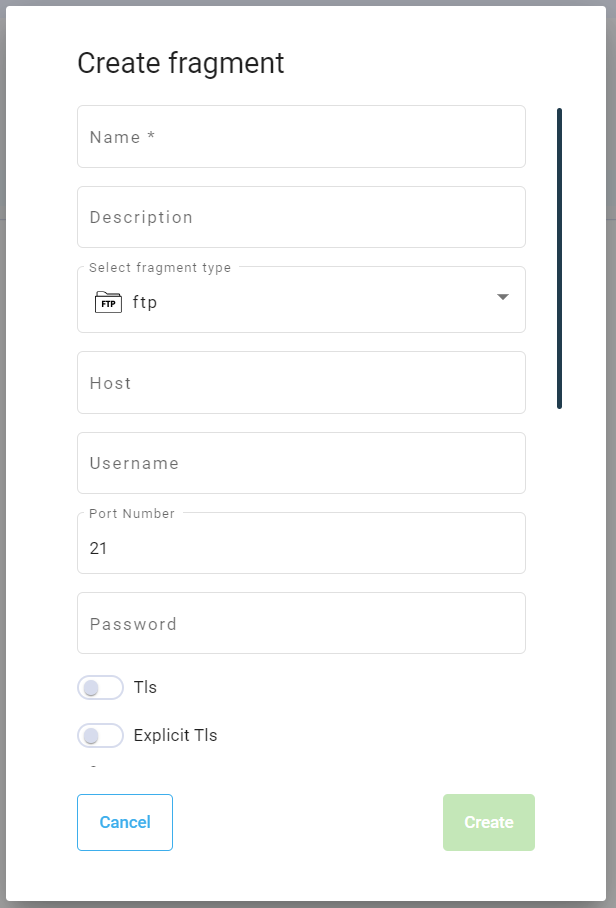
The FTP fragment is a defined configuration a workflow can access.
Properties
To configure the FTP fragment, there are three commonly used fields.
Name and Description: These properties are to define the name of your fragment and a short description about it.
Host: FTP URL to connect to. (i.e.
ftp.example.com)Username and Password: The username and password used to access the FTP storage.
SFTP
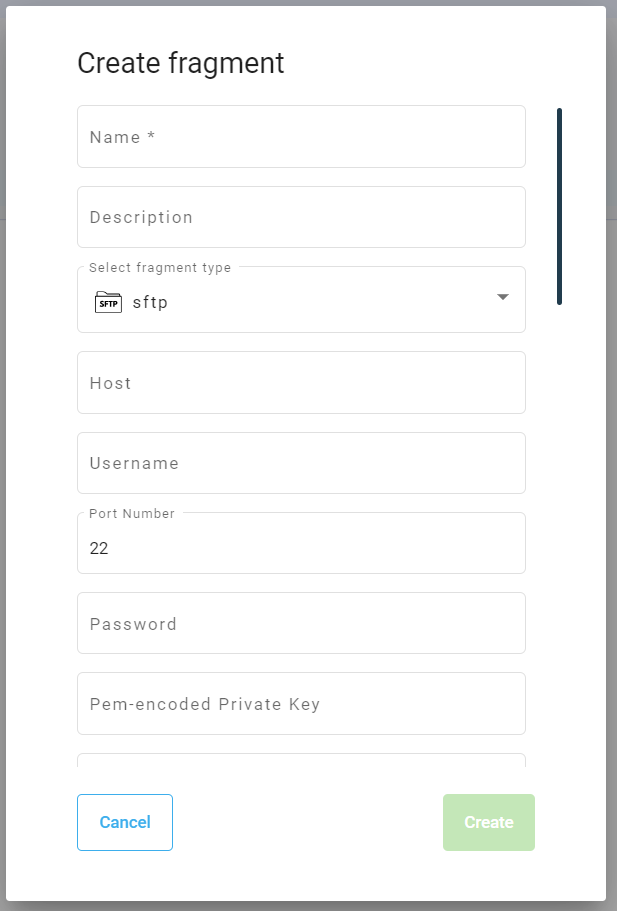
The SFTP fragment is a defined configuration a workflow can access.
Properties
To configure the SFTP fragment, there are three commonly used fields.
Name and Description: These properties are to define the name of your fragment and a short description about it.
Host: SFTP URL to connect to. (i.e.
sftp.example.com)Username and Password: The username and password used to access the SFTP storage.