Entity Basics
Entities are comprised of Triggers, Actions, and Fragments. They are the building blocks used to create a Workflow. All workflows start with a Trigger and are followed by multiple Actions. Fragments are a user pre-defined configuration used for specific Triggers and Actions.
Triggers are used to determine when a Workflow can be started. Examples of Triggers are:
- Specific Time
- Interval Timer
- Email Sent
- .. and more!
Actions are a set of events that follow a Trigger. Actions represent the steps to take within a business process. Examples of Actions are:
- Data Conversions
- PDF Extraction
- File Retrieval
- Email Notification
- … and more!
Fragments are user-defined configurations that are used to complete a Trigger or Action. Examples of Fragments are:
- File Storage configuration
- PDF Template
Where to Manage Entities?
Entities can be configured in two places:
- Manage Workflows
- Manage Entities
Entities can be configured and modified while building your workflow in the ‘Manage Workflows’ page. To remove an entity from a workflow or swap its position, it can only be done from this page.
Entities can also be modified in the ‘Manage Entities’ page. This is where you can modify or remove entities completely.
Entities - 'Manage Workflows'
To configure or modify an entity in the ‘Manage Workflows’ page, enter the page by clicking on the Manage option in the menu screen.
To create a workflow, please refer to the Workflow Basics guide
- Enter the workflow where the entity should be placed
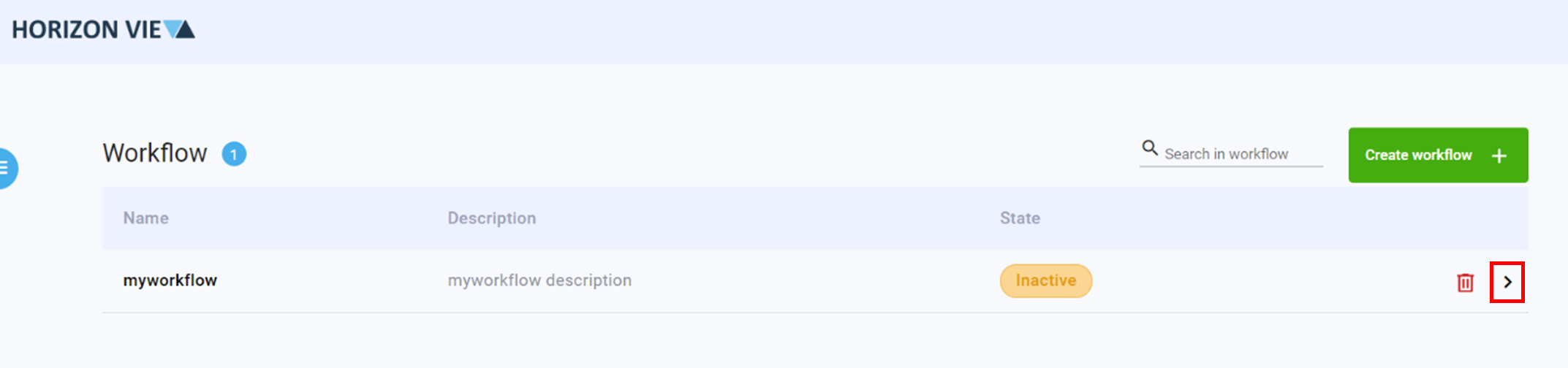
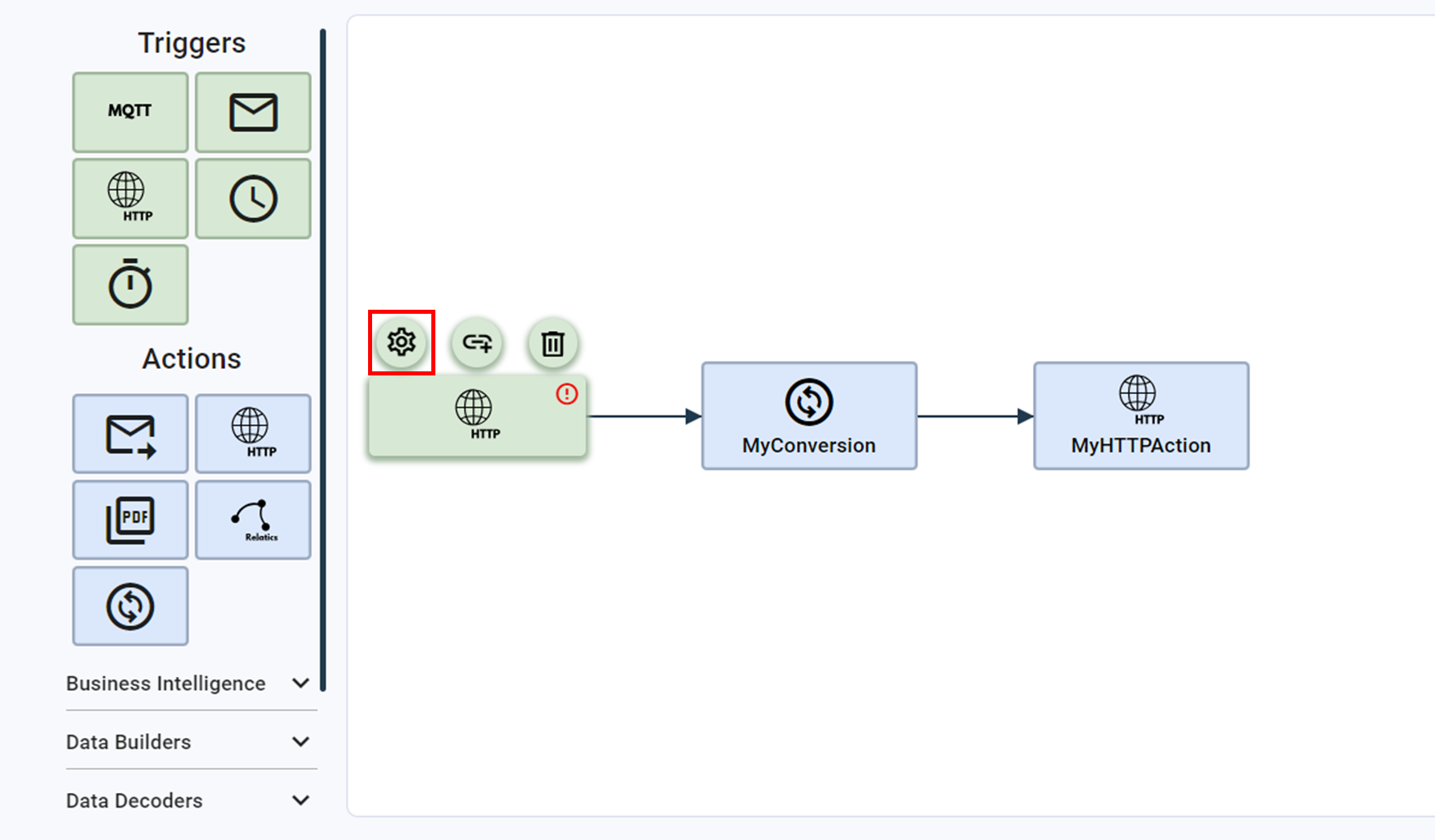
- Click on the Trigger or Action in your workflow that you want to configure or modify
- Click on the gear icon ‘Configure’ that appears on top of the Trigger or Action
- Fill in or modify the required fields of the Trigger or Action
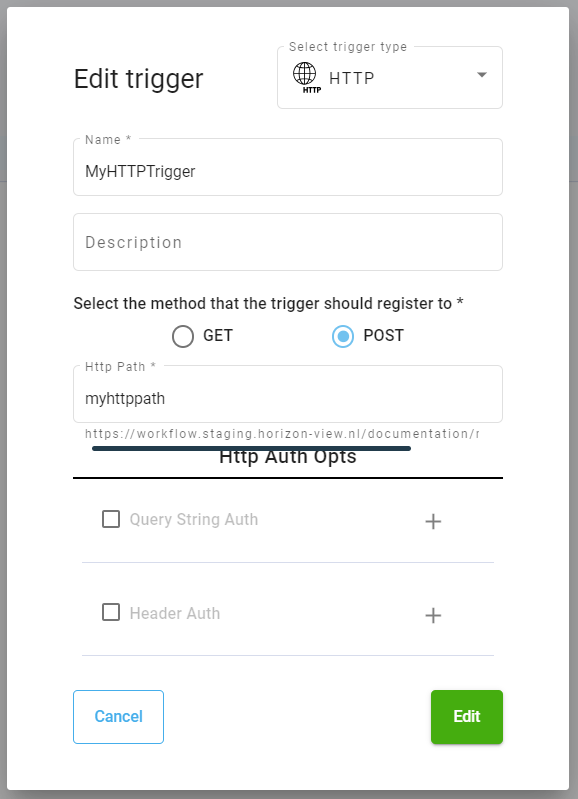
- Click on the green ‘Create’ or ‘Edit’ button on the bottom right hand corner
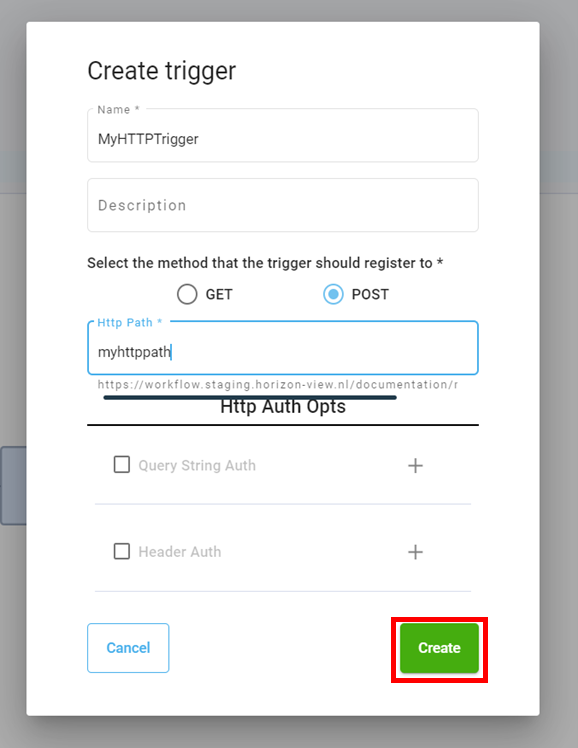
- Repeat steps 1-4 for additional Triggers or Actions that need to be configured or modified
Entities - 'Manage Entities'
Modify Entity
To modify an entity in the ‘Manage Entities’ page, enter the page by clicking on the Manage option in the menu screen.
- Locate the Trigger/Action/Fragment that needs to be modified. (This can be done by either scrolling through the list or by filtering the Trigger/Action/Fragment type.)
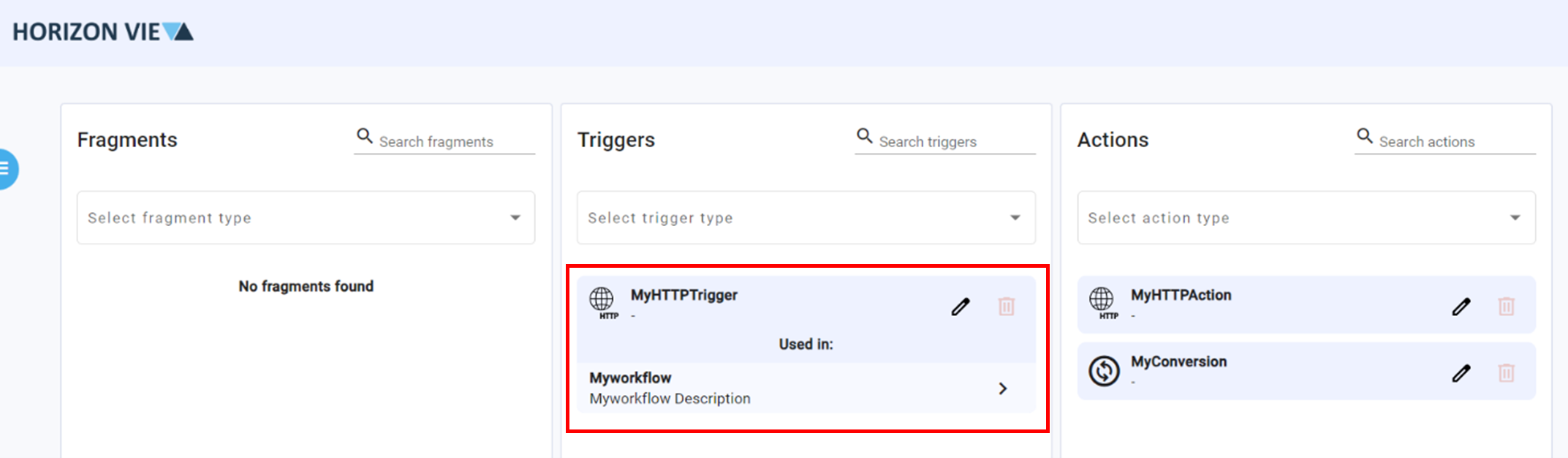
- To modify the entity, click on the pen icon.
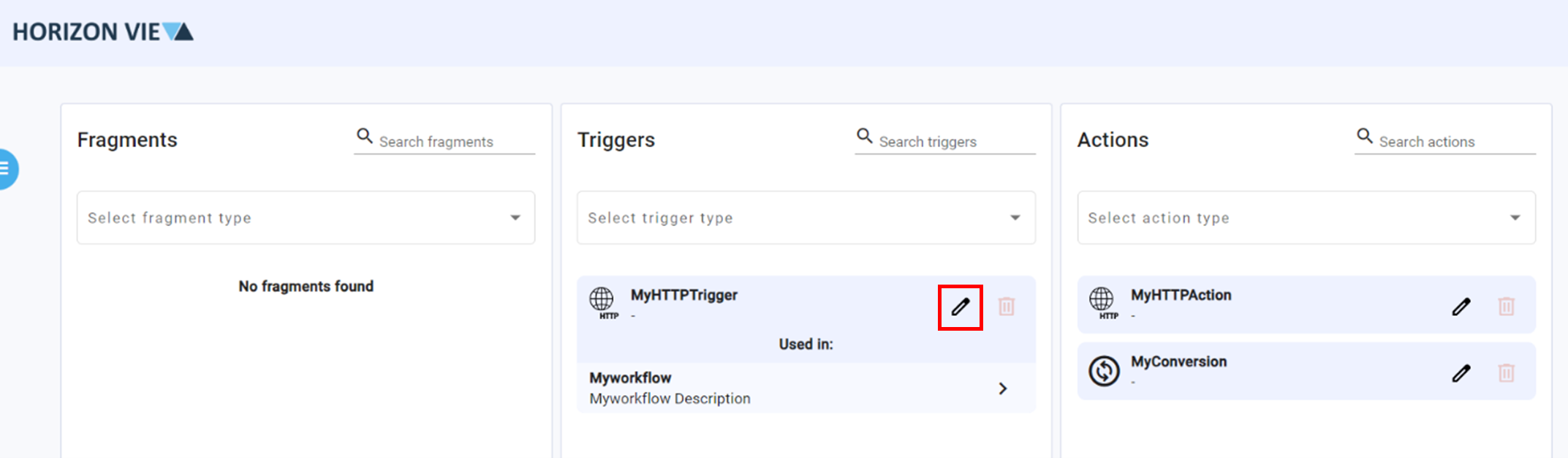
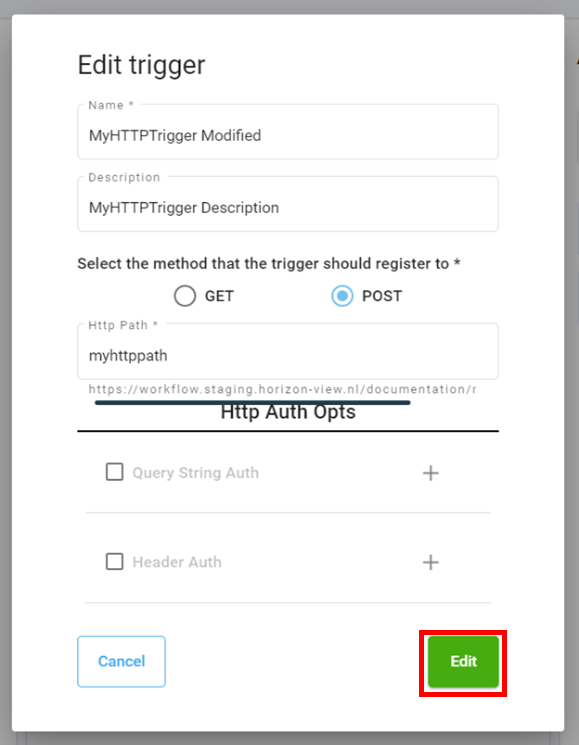
- Modify the necessary entity fields
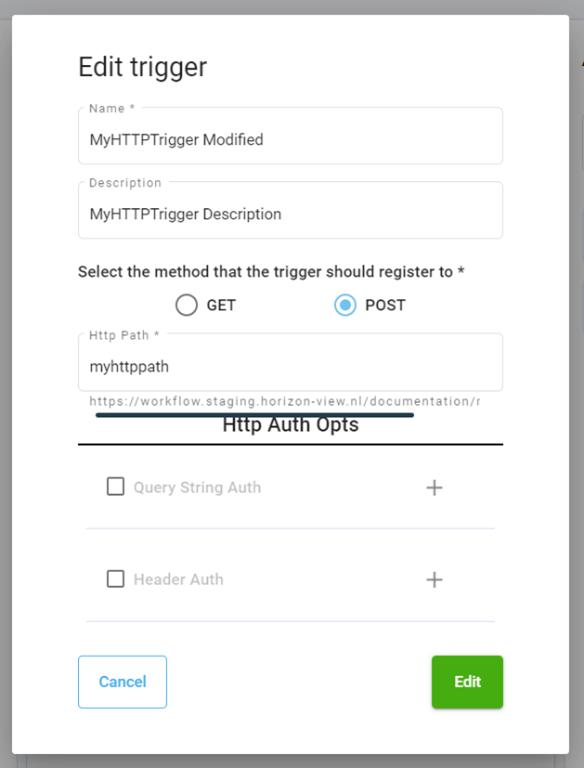
- Click on the green ‘Edit’ button when finished
Remove Entity
To remove an entity completely, enter the ‘Manage Entities’ page by clicking on the Manage option in the menu screen.
To remove an entity completely, it must not be used in any workflow.
- Locate the Trigger/Action/Fragment that needs to be removed. (This can be done by either scrolling through the list or by filtering the Trigger/Action/Fragment type.)
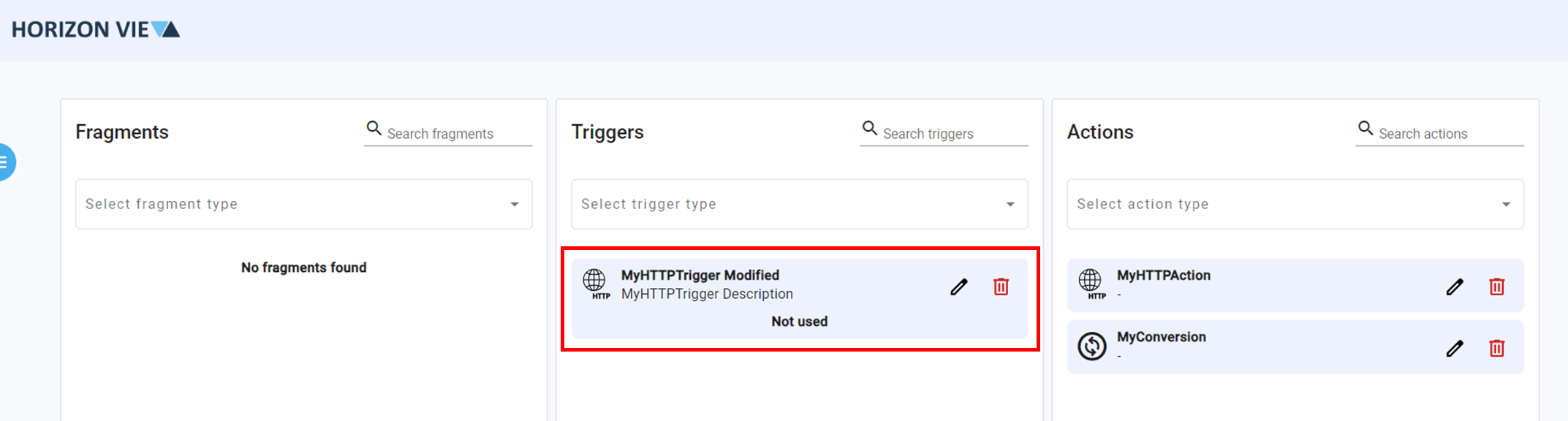
- Click on the red trashcan icon
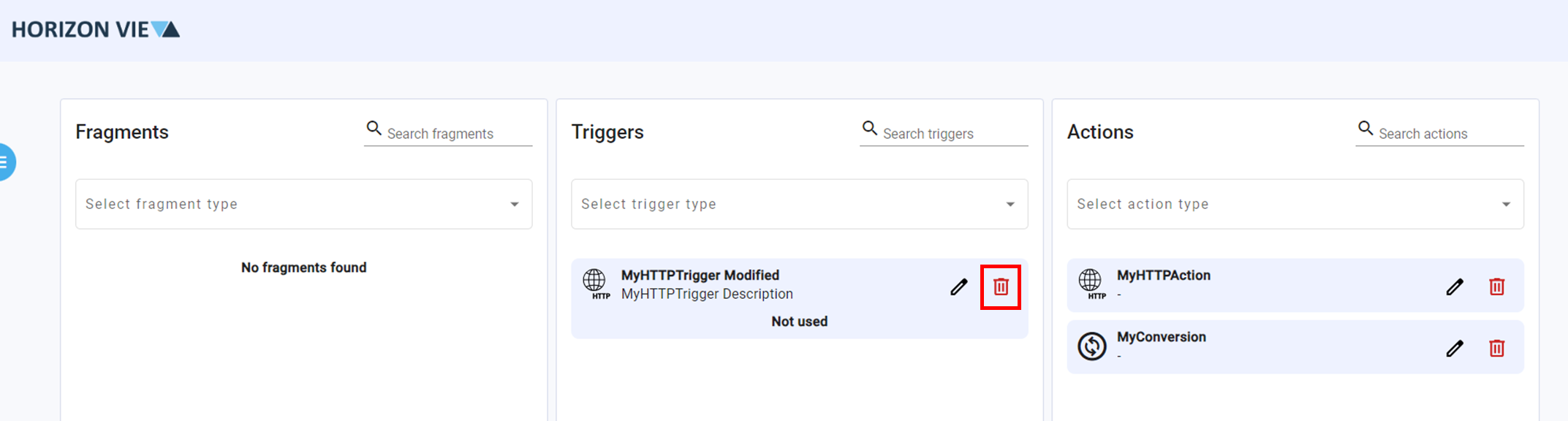
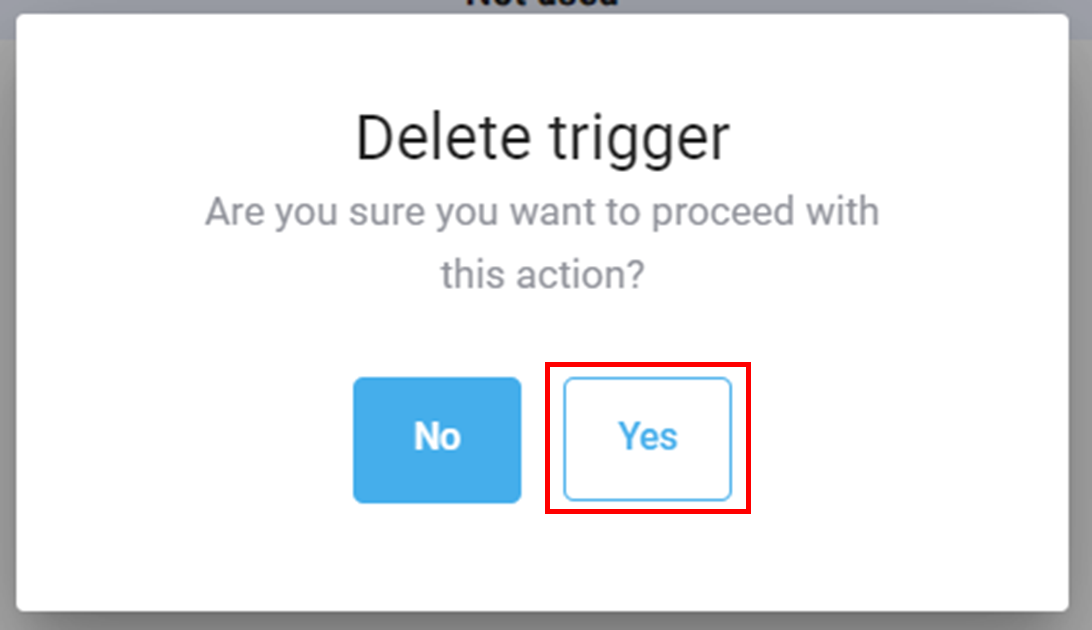
- Click ‘Yes’ to confirm